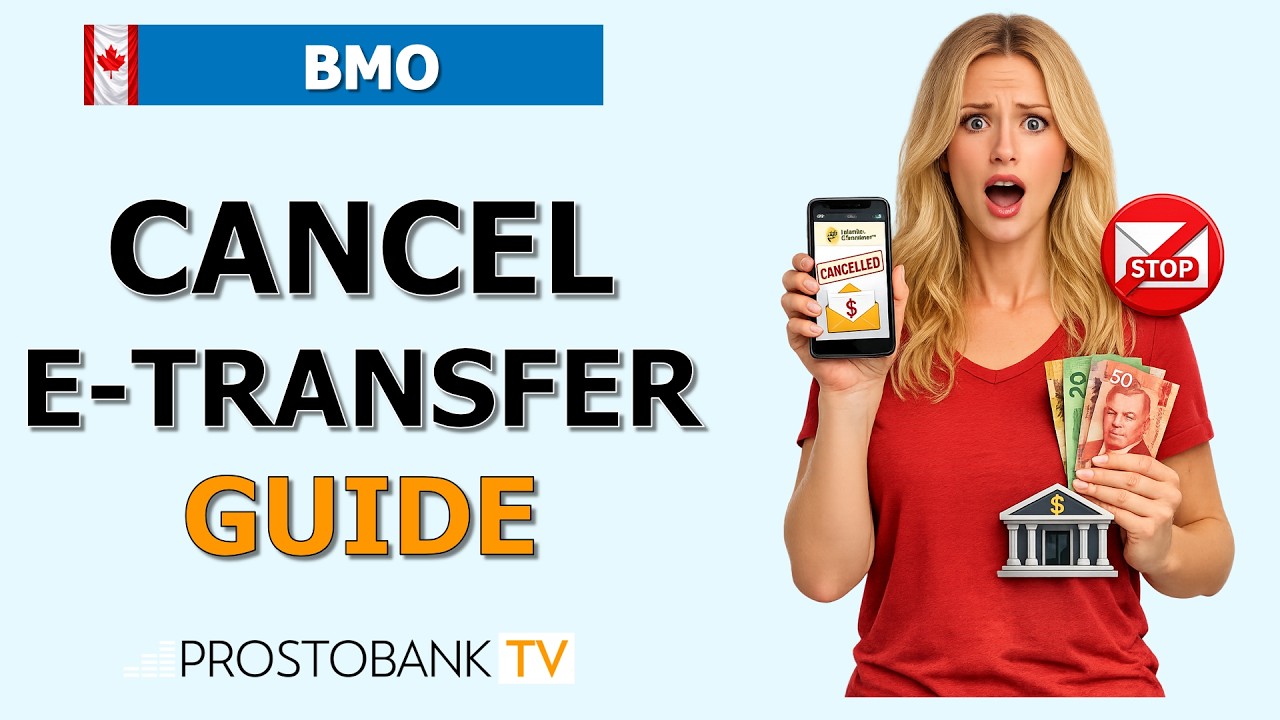

Sending money via Interac e-Transfer is one of the most convenient ways to handle payments in Canada, but mistakes happen. Whether you’ve entered the wrong email address or simply changed your mind, the Bank of Montreal (BMO) allows you to cancel a pending transfer and return the funds to your account, provided the recipient has not yet deposited the money.
It is important to act quickly, especially if the recipient has Autodeposit enabled, as those transfers are processed instantly and cannot be reversed. Below is the exact sequence of actions required to stop a payment using BMO’s digital platforms, along with critical information regarding timelines and potential service fees.
BMO e-Transfer Cancellation Overview
| Category | Details | |
|---|---|---|
| Cancellation Fee | Free if cancelled same-day (before midnight ET); otherwise $5.00. | |
| Original Transfer Fee | The initial $1.00 or $1.50 sending fee is non-refundable. | Only Pending transfers can be cancelled. |
Algorithm: How to Cancel Your e-Transfer via BMO Mobile
- Step 1: Sign in to the BMO Mobile Banking app or Online Banking portal.
- Step 2: Navigate to the Payments & Transfers tab and select Interac e-Transfer.
- Step 3: Tap on Pending or Transaction History to view your active transfers.
- Step 4: Select the specific transfer you wish to stop and tap the Cancel or Stop Transfer button.
- Step 5: Confirm the cancellation. The funds (minus the original sending fee) will be deposited back into your account immediately.
Pro-Tip: To avoid the $5.00 "different day" cancellation fee, always review your Transaction History before 11:59 PM Eastern Time on the day you sent the money. If you spot an error, cancelling before the midnight cutoff ensures you only lose the initial $1.00 sending fee rather than the additional penalty.
Troubleshooting Digital Access Issues
- MFA Verification Failure: If you are unable to log in to cancel a transfer because you aren't receiving your 2-Step Verification code, check your cellular signal. You can also opt to answer your Challenge Questions instead of receiving a text code to regain account access.
- Browser & Session Timeouts: BMO Online Banking automatically times out after 10 minutes of inactivity. If the "Cancel" button isn't responding, your session may have expired. Clear your browser cache, log out, and sign back in to refresh the transaction status.
- Locked BMO ID: If you enter your password incorrectly while rushing to cancel a transfer, your account may lock. Use the Forgot Password link to reset your credentials using your Client ID and MFA, or call 1-800-363-9992 for immediate assistance.
Frequently Asked Questions
Can I cancel an e-transfer if the recipient has Autodeposit?
No. If the recipient has Autodeposit active, the funds are deposited the moment the transfer is sent. In this case, the transaction is final, and you must contact the recipient directly to request a refund.
How long do I have to cancel a BMO e-transfer?
You have up to 30 days to cancel a transfer as long as it remains uncollected. If the recipient does not accept the funds within 30 days, the transfer expires, and you will have an additional 15 days to reclaim the funds via your Payment History.